Studio
Studio is Casola’s unified creative interface. It works like a chat assistant that can generate images, videos, and speech — all in one conversation. Open it from the home page or navigate to Studio in the sidebar.
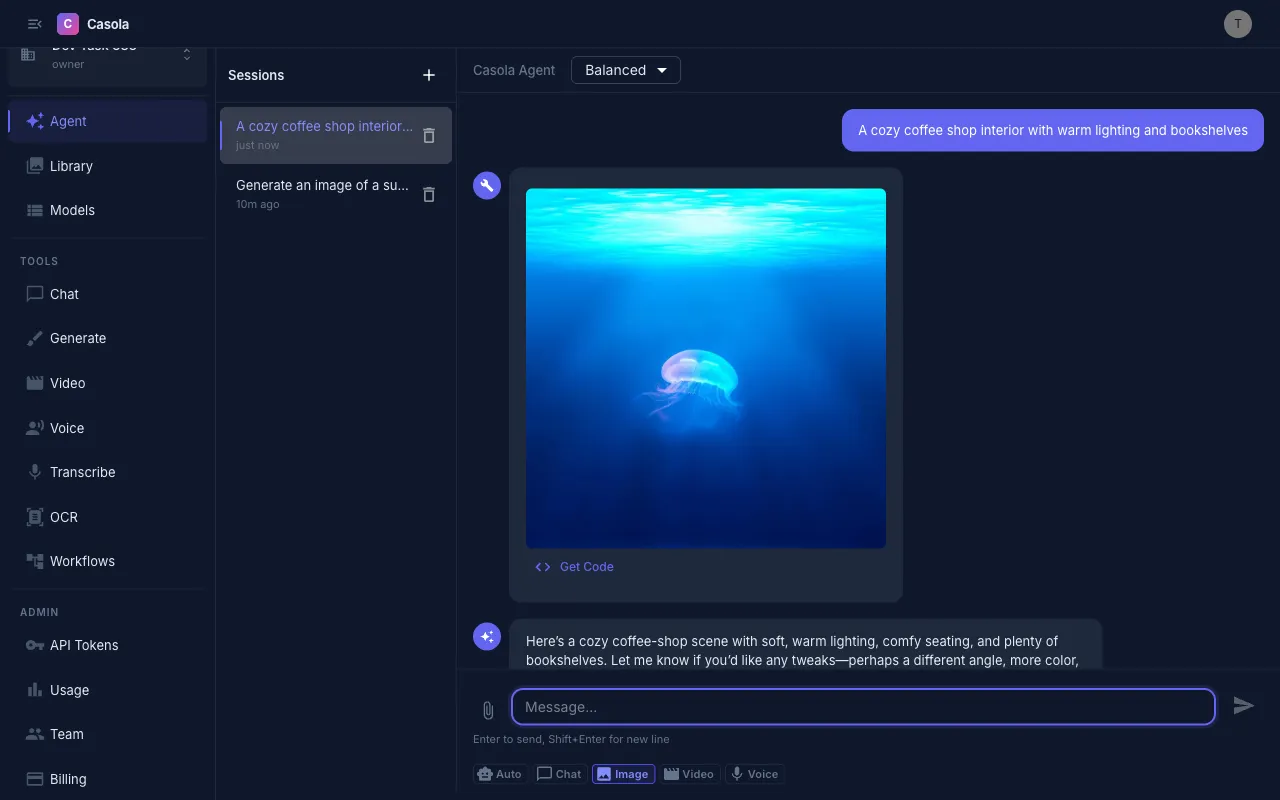
Choose a mode
Section titled “Choose a mode”Studio supports five modes, selectable via chips at the top of the input:
| Mode | What it does |
|---|---|
| Auto | Detects the most likely modality from your input (default) |
| Chat | Text-only conversation — generation tools only fire if you explicitly ask |
| Image | Biased toward image generation |
| Video | Biased toward video generation |
| Voice | Biased toward text-to-speech |
Auto mode analyzes your prompt and infers intent. When it detects a match, a hint appears next to the chip — for example, “Auto → Image”. If you find Auto guessing wrong, switch to the explicit mode.
Set a quality level
Section titled “Set a quality level”The quality dropdown in the top bar controls generation parameters across all modalities:
| Level | Images | Video |
|---|---|---|
| Fast | 15 steps, 3.5 guidance | 20 steps |
| Balanced | Model defaults | Model defaults |
| Max | 40 steps, 7.5 guidance | 50 steps, 7.5 guidance |
Higher step counts produce more detail at the cost of longer generation time. Higher guidance scale makes the output follow your prompt more closely. Quality applies to all media generated in that conversation.
Generate content
Section titled “Generate content”Type a prompt and press Enter. Studio sends your message to an LLM that decides which tool to call:
generate_image— text-to-image with aspect ratio options (square, portrait, landscape)generate_video— text-to-video or image-to-videogenerate_speech— text-to-speech with voice selectiontranscribe_audio— audio-to-textsearch_library— search your past creations
Results appear inline in the conversation. Images are clickable for a full-size view, videos play inline (Shift+click for lightbox), and audio has a built-in player.
View Code
Section titled “View Code”Each media result includes a View Code button that shows the equivalent API call (curl, Python, or TypeScript). Use this to reproduce the exact generation programmatically or integrate it into your application.
The assistant can chain multiple tools in one turn — for example, generating an image and then describing it.
Manage conversations
Section titled “Manage conversations”The sidebar lists all your Studio sessions, sorted by most recent. Each session shows its title (taken from the first message) and last update time.
- Click New Session to start fresh
- Click a session to resume it
- Delete sessions you no longer need
Sessions are saved to your Library automatically.
- Iterate in context — ask the assistant to modify a previous result (“make it warmer”, “add a sunset background”). It uses conversation history to refine outputs.
- Chain modalities — generate an image, then ask to animate it into a video, or describe a scene and ask for both an image and narration.
- Switch modes mid-conversation — if Auto picks the wrong tool, switch to the explicit mode chip and resend your prompt.
- Use View Code to graduate — prototype in Studio, then export the API call for production use.
When to use Studio vs. dedicated pages
Section titled “When to use Studio vs. dedicated pages”Use Studio when you want a conversational workflow — asking the AI to generate, iterate, and combine different media types in context. Use the dedicated Image Generation, Chat, or Voice pages when you want direct control over model selection and advanced parameters.