
Team Management
The Team page lets organization admins invite people, assign roles, and configure organization-wide settings. Only users with the Owner or Admin role can access this page.
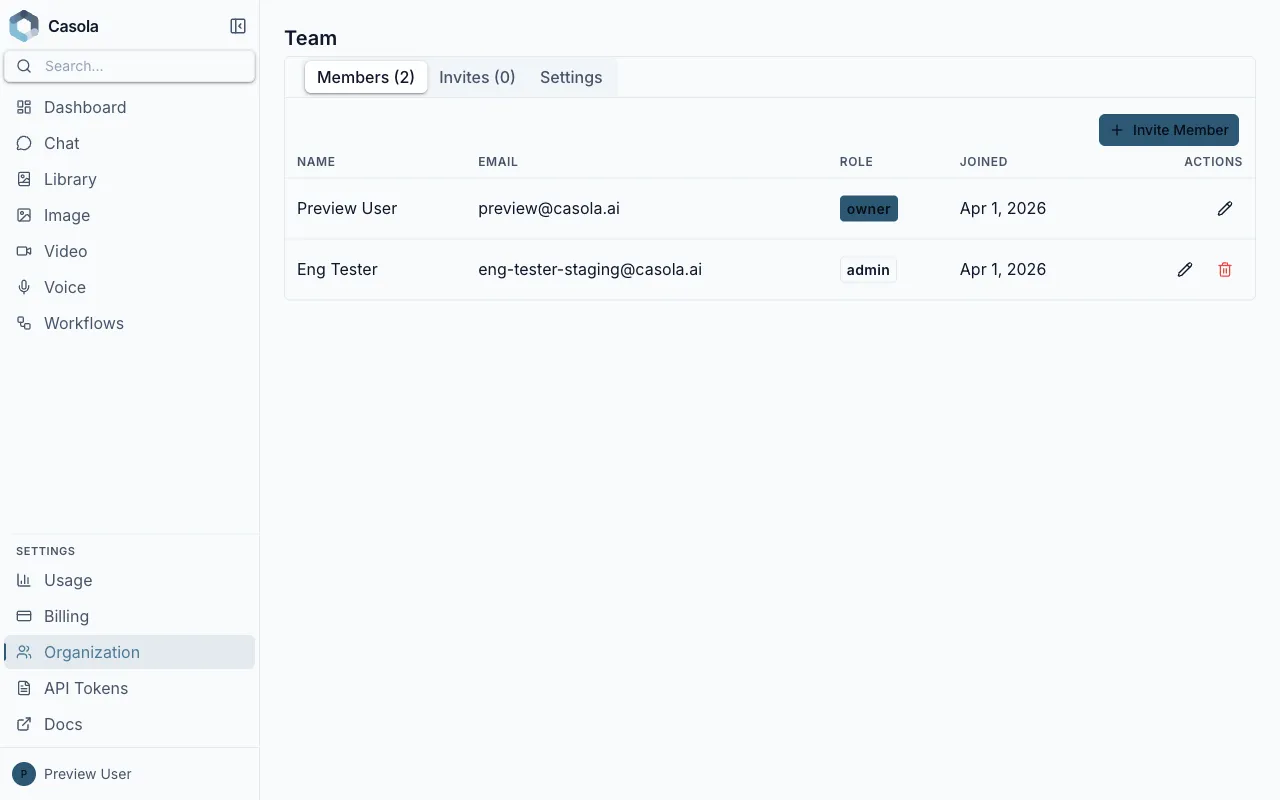
Every member has one of four roles. Here’s what each can do:
| Role | What they can do |
|---|---|
| Owner | Everything — full control over the organization, billing, and members. Can transfer ownership. |
| Admin | Manage members, invites, and organization settings. Cannot manage billing or transfer ownership. |
| Member | Use the platform — submit jobs, create agents, manage their own tokens. |
| Viewer | Read-only access — can browse models and view results, but cannot submit jobs or make changes. |
| Disabled | No access — cannot log in or make any requests. Used to deactivate a member without removing them from the organization. |
An organization can have multiple Owners and Admins. There must always be at least one Owner — the last remaining Owner cannot be demoted or removed.
Inviting members
Section titled “Inviting members”Click Create Invite on the Invites tab to open the invite dialog.
| Field | Description |
|---|---|
| The email address to invite. Leave empty to create an open invite link that anyone can use. | |
| Role | The role the new member will receive when they join. |
| Multi-use | Toggle on to allow the invite link to be used more than once. |
| Max uses | When multi-use is enabled, the maximum number of times the link can be used. |
After creating the invite, you’ll see the invite URL. Copy it and share it with the person you’re inviting. Invite links expire after 7 days.
Open invites
Section titled “Open invites”Leave the email field empty to create an invite link that anyone can use to join your organization. This is useful for onboarding an entire team quickly. Combine with the multi-use toggle and a max-uses limit to control how many people can join.
Invite link
Section titled “Invite link”Each invite generates a link in the format https://app.casola.ai/join/{token}. When someone opens the link, they’ll be prompted to sign in (or create an account) and then automatically join your organization with the assigned role.
Managing members
Section titled “Managing members”On the Members tab, you can see everyone in your organization along with their role and join date.
Changing a role — Click Change Role next to a member to open the role selector. Pick the new role and confirm. Role changes take effect immediately.
Removing a member — Demote a member or revoke their access as needed. Remember that the last Owner cannot be removed.
Organization settings
Section titled “Organization settings”Data region
Section titled “Data region”Set a default data region for your organization’s jobs:
| Region | Description |
|---|---|
| Global | Jobs are routed to the fastest available GPU, regardless of location. This is the default. |
| US | Jobs are routed only to US-based GPUs. |
| EU | Jobs are routed only to EU-based GPUs. |
| AP | Jobs are routed only to Asia-Pacific GPUs (Tokyo, Singapore, Sydney). |
The data region controls where job data is processed. Choosing a specific region restricts job routing to GPUs in that region, which may affect availability and queue times.
Audit log
Section titled “Audit log”The Audit page (accessible to Owners and Admins) shows a log of activity across your organization.
Inference tab
Section titled “Inference tab”The Inference tab records per-request GPU geography — every inference job is logged with the queue POP that processed it (e.g. iad, fra, nrt) and the GPU hardware used. This lets you verify that jobs are running in the expected region.
Each row shows:
| Column | Description |
|---|---|
| Time | When the job was dispatched |
| Model | The model ID that served the request |
| Region | The leaf POP that processed the job (e.g. iad = US East, fra = EU, nrt = Tokyo) |
| GPU | The GPU type used (e.g. RTX 4090, H100) |
| Status | Job outcome (completed, failed, cancelled) |
| Token | The API token that submitted the request |
Use the Inference tab to self-audit data residency: if your organization is restricted to EU, every row should show a fra region. Rows with other POPs indicate a misconfigured token or allowed-regions policy.
Personal vs. organization context
Section titled “Personal vs. organization context”When you sign in to Casola, you’re always working within an organization. If you haven’t been invited to one, you have a personal organization created automatically. You can switch between organizations from the sidebar if you belong to more than one.